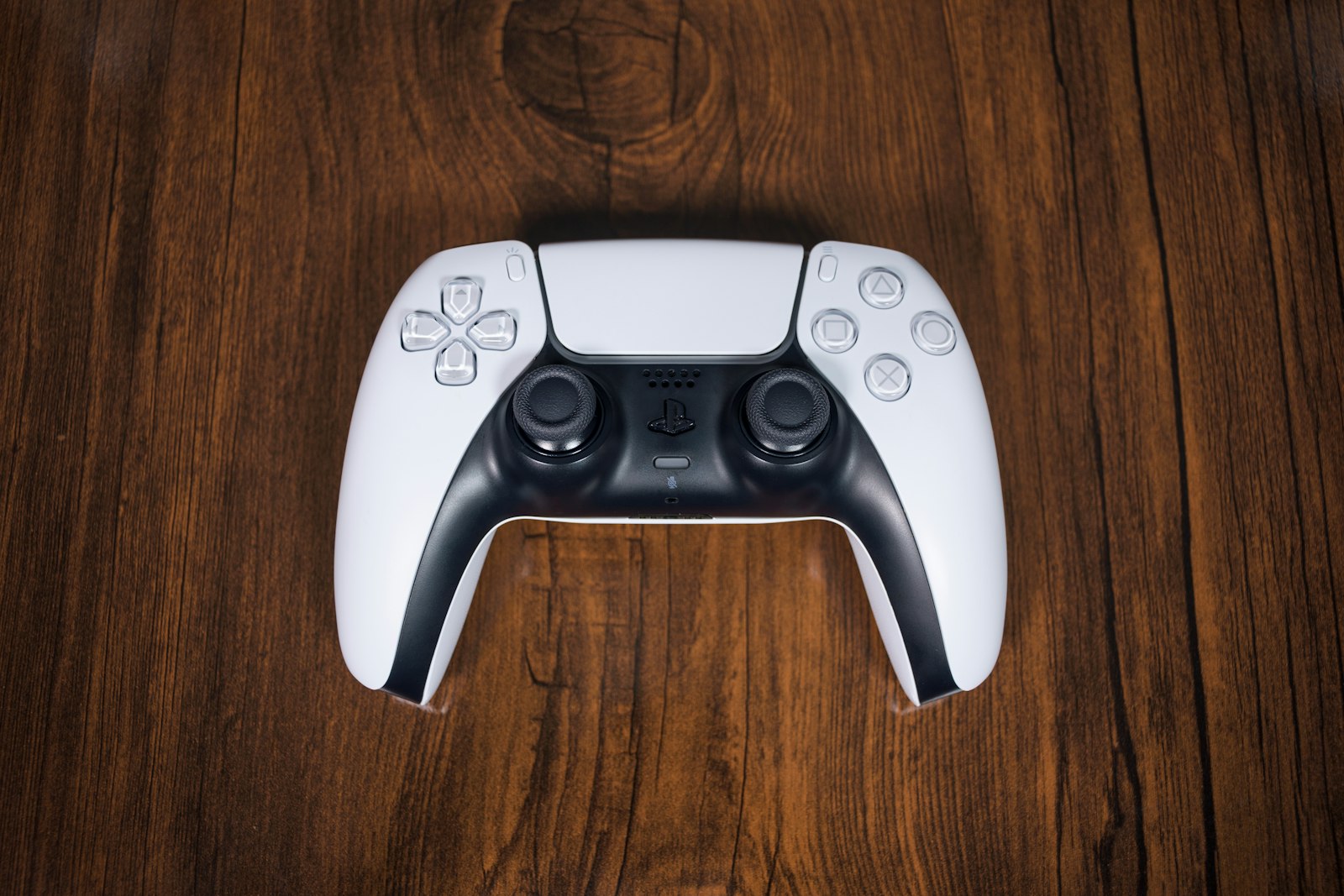
01At a glance
- Connection
- USB wired for haptics + adaptive triggers
- Bluetooth
- Basic input; trigger effects unavailable
- Check
- Pad test shows USB, rumble, triggers
- Scope
- One pad during verification runs
02Procedure
Precondition: Meridian boots to idle. Use one controller during verification.
- Connect the DualSense over USB — not Bluetooth. Windows must enumerate it before Meridian starts.
- Open Settings → Controller and run the pad test: confirm USB transport, rumble, and adaptive-trigger response.
- Map and deadzone once, then leave settings untouched for the whole verification session. Deadzone drift invalidates timing comparisons.
03Rules
- Haptics and triggers require USB. Bluetooth drops both by transport design, not by bug.
- Disable Steam Input and DS4Windows-style remappers during verification — they double-handle the pad.
- Re-test after every driver or Windows update; USB enumeration order can change.
Titles that showcase triggers: Astro Bot and Demon's Souls. Free build at Download Meridian.
04Questions
Q.01Why do triggers work on USB but not Bluetooth?
The trigger channel requires USB transport. Bluetooth carries basic input only.
Q.02My pad double-inputs — what causes that?
A second remapper holding the pad. Close Steam Input and similar tools, then re-run the pad test.
Q.03Can I verify with two pads?
Verify single-pad first. Add a second pad only after the title's rating run is clean.